
Run check-in at your meeting
Put the check-in screen on a laptop or TV, or set out the printed sheet, and attendance takes care of itself.
Check-in records who came, gives members their points and adds guests to your list.
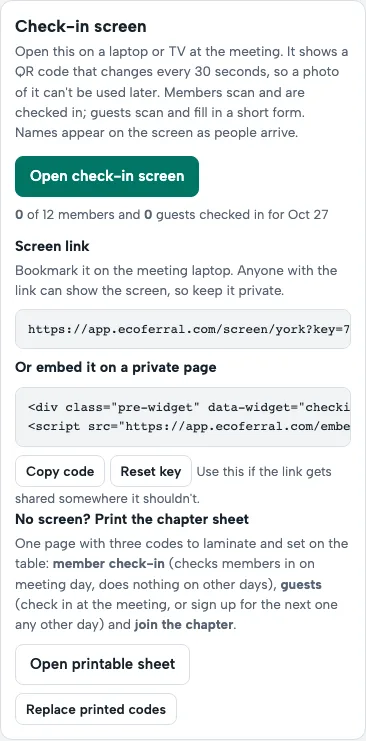
- On Meetings, tap Open check-in screen on a laptop or TV at the meeting. The QR code changes every 30 seconds, so a photo of it can't be used later.
- Members scan it with their phone camera. The first time, they confirm their email with a 6-digit code; after that, one tap.
- Guests scan it and fill in a short form. Names appear on the screen as people arrive.
- No screen? Tap Open printable sheet and set it on the table. It has three codes: member check-in, guests, and joining the chapter.
- Forgot to scan? Members can tap I was there on Home for a few days after, and you confirm it. You can also check someone in by hand on Meetings.
Keep the screen link private. If it's shared somewhere it shouldn't be, tap Reset key; if a printed sheet goes missing, Replace printed codes.
Questions
When does check-in work?
From an hour before the meeting starts until 30 minutes after it ends, in your chapter's time zone.
What is meeting mode?
A full-screen view for the meeting itself: who's presenting, thank-yous for closed business and the chapter's sponsor. Start it from Meetings.
← All guides · Members: open Help in the portal